Quickstart
Closed Beta — variable Jar is currently invite-only. Join the waitlist for launch news and early access.
The plugin syncs Figma and variable Jar with a single button. Bring your Figma variables into variable Jar to edit them like a spreadsheet, trace their references in the Token graph, and manage translations with your team — then sync once more to send your edits back to Figma.
Step 1 — Sign in and connect a Figma file
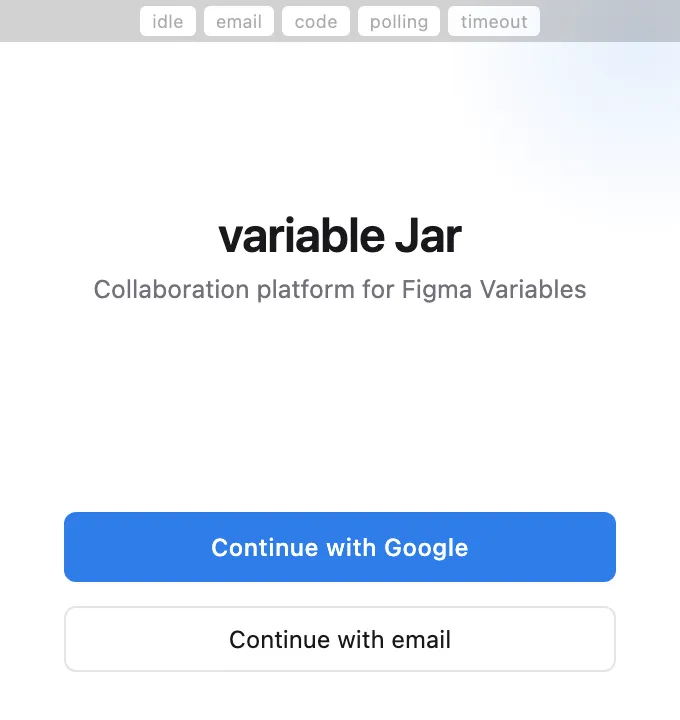
Run the variable Jar plugin in a Figma file that has variables. First time? Sign in with Continue with Google or Continue with email (6-digit verification code) — your account and personal workspace are created automatically, with no separate sign-up.
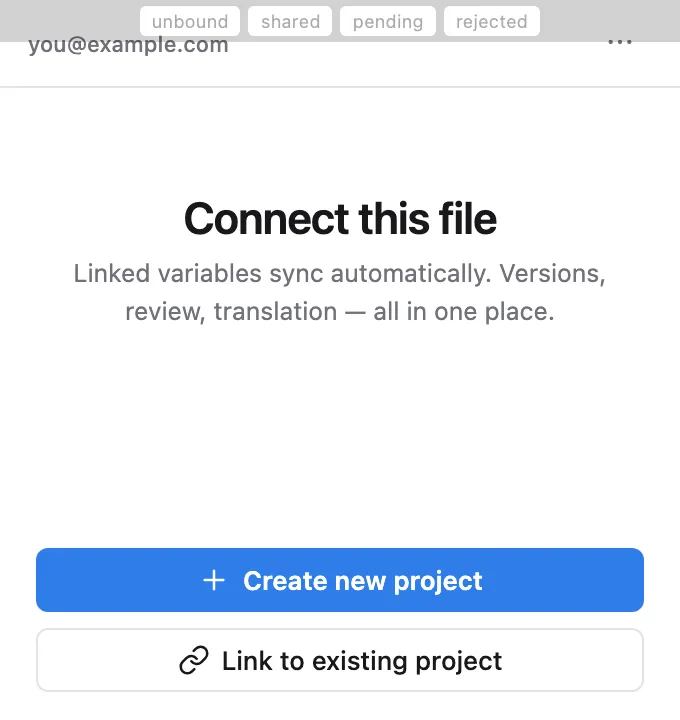
- If the file isn’t connected yet, the Connect this file screen appears.
- Choose Create new project and enter a project name — leave it empty to use the Figma file name.
- Click Create. The file is connected, and all variables in it are uploaded to the project automatically.
If your team already has a project, choose Link to existing project and pick the workspace and project instead.
Someone else already connected this file? On the “Already connected” screen you can send Request as translator (free) or Ask to be invited as team member. Once an owner or team member approves, click Check again to connect. See the file linking section of Figma Sync for all options, and Team & roles for roles.
Step 2 — Open the master grid in the web app
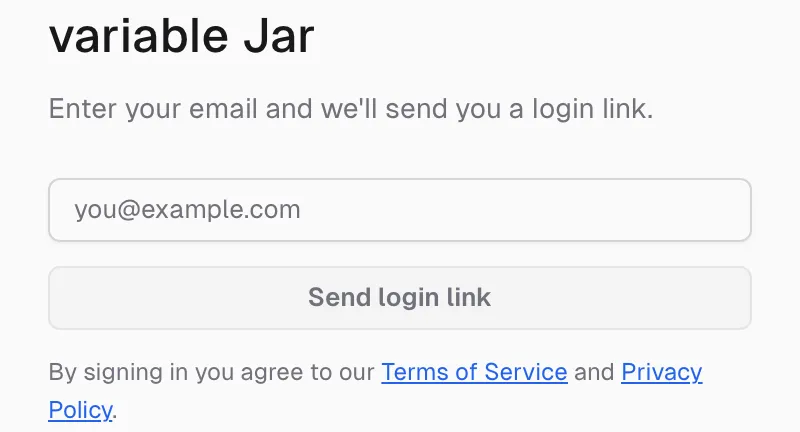
- Go to variablejar.com/app, enter your email, and click Send login link.
- Click the link in the email to sign in — use the same email as in the plugin.
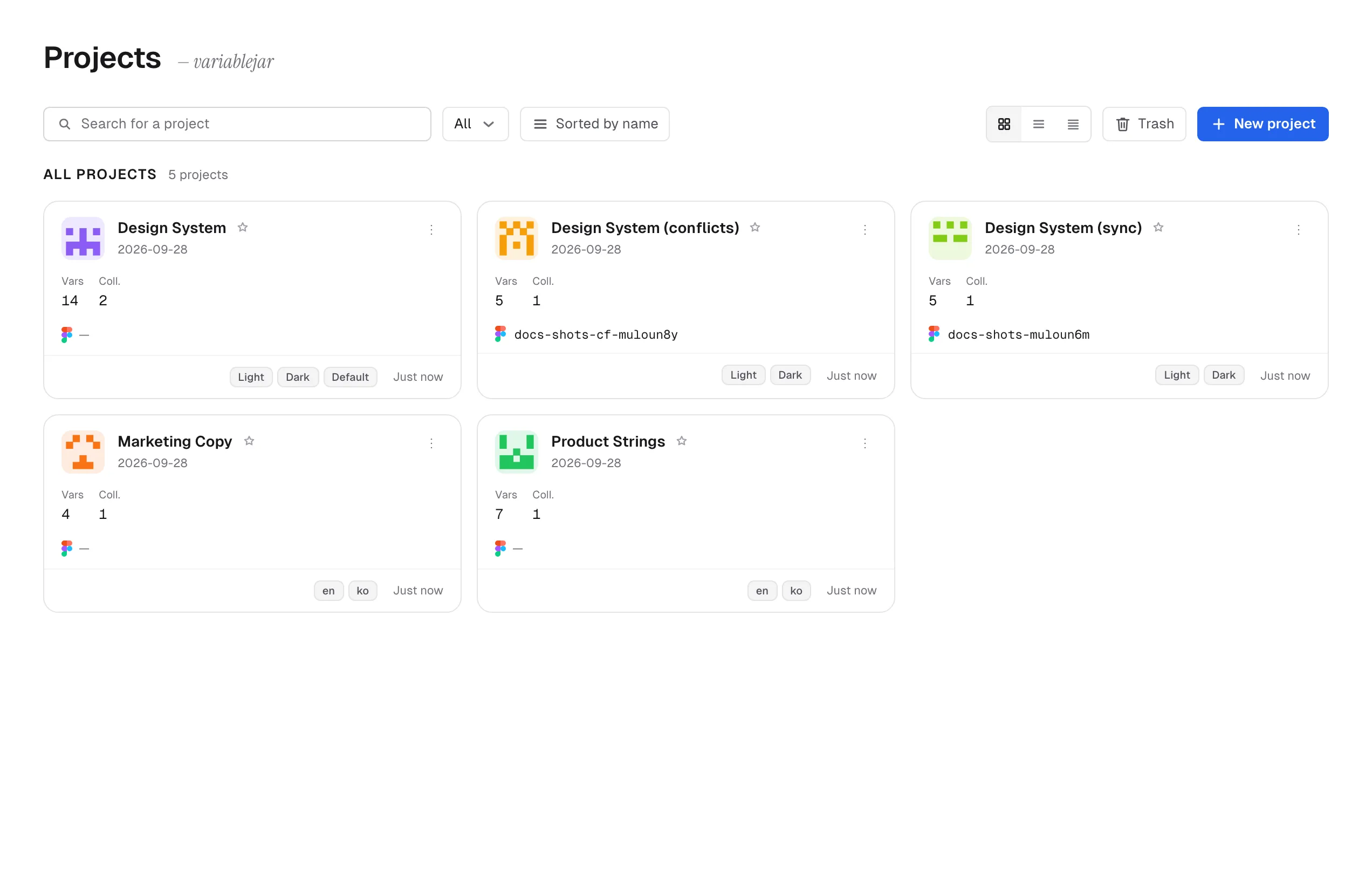
- Open your new project from the project list — the variable grid is in the Master tab.
Step 3 — Edit in the grid
- Click any value cell to edit it. Strings are text, numbers are numeric input, booleans are toggles, colors get a color picker/hex.
- Create variables with the + Add variable button — pick a type and enter a name.
- To change many cells at once, see multi-select and batch input in Using the grid.
Step 4 — Sync back to Figma
Return to the plugin and press Sync.
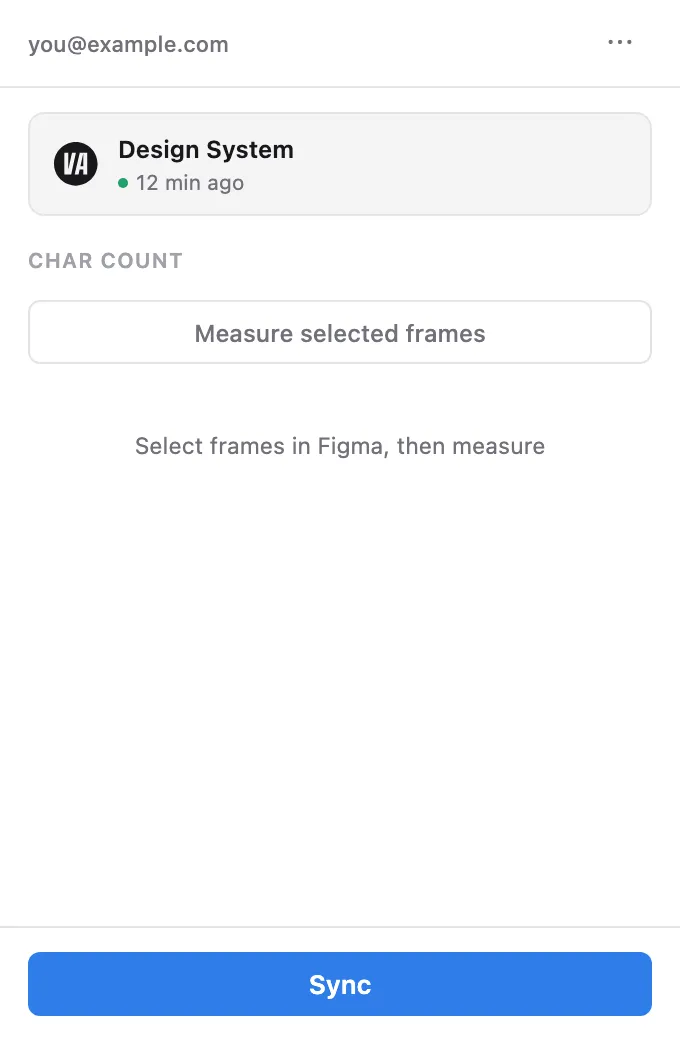
- Your web edits are applied to Figma Variables immediately, and a toast summarizes how many changes were synced.
- Variables edited in Figma in the meantime are brought into the master as well.
- If the same variable changed on both sides, a toast reports how many conflicts are waiting — see Figma Sync to resolve them.
Next steps
- Using the grid — multi-select, batch editing, copy/paste, shortcuts
- Figma Sync — how sync works and conflict resolution
- Translation workflow — translation sheets, AI translation, review
- Team & roles — inviting members, permissions, history