Variable metadata
Variables carry more than values — they carry information about where they can be used. variable Jar manages three kinds of metadata in the master grid and the detail panel.
| Metadata | What it does | Figma sync |
|---|---|---|
| Scopes | Limit which property pickers show the variable | ✓ round-trip |
| Description | A note on what the variable is for | ✓ round-trip |
| Tag | Color-coded internal grouping | Web-only |
Scopes and descriptions are read from Figma on Sync, and your web edits land back in Figma’s variable panel. Tags are web-only — they never touch Figma.
Like values, scopes and descriptions can conflict. If the same variable’s scopes or description were changed differently in Figma and on the web before a sync, the conflict banner counts them as Scopes diverged too · N / Descriptions diverged too · N, and you pick the Figma side or the VA side per row in that column, the same way as a value conflict (Pick per row in the Scope column / Pick per row in the Description column). Choosing and applying works as described in the conflict section of Figma Sync.
Turning on metadata columns
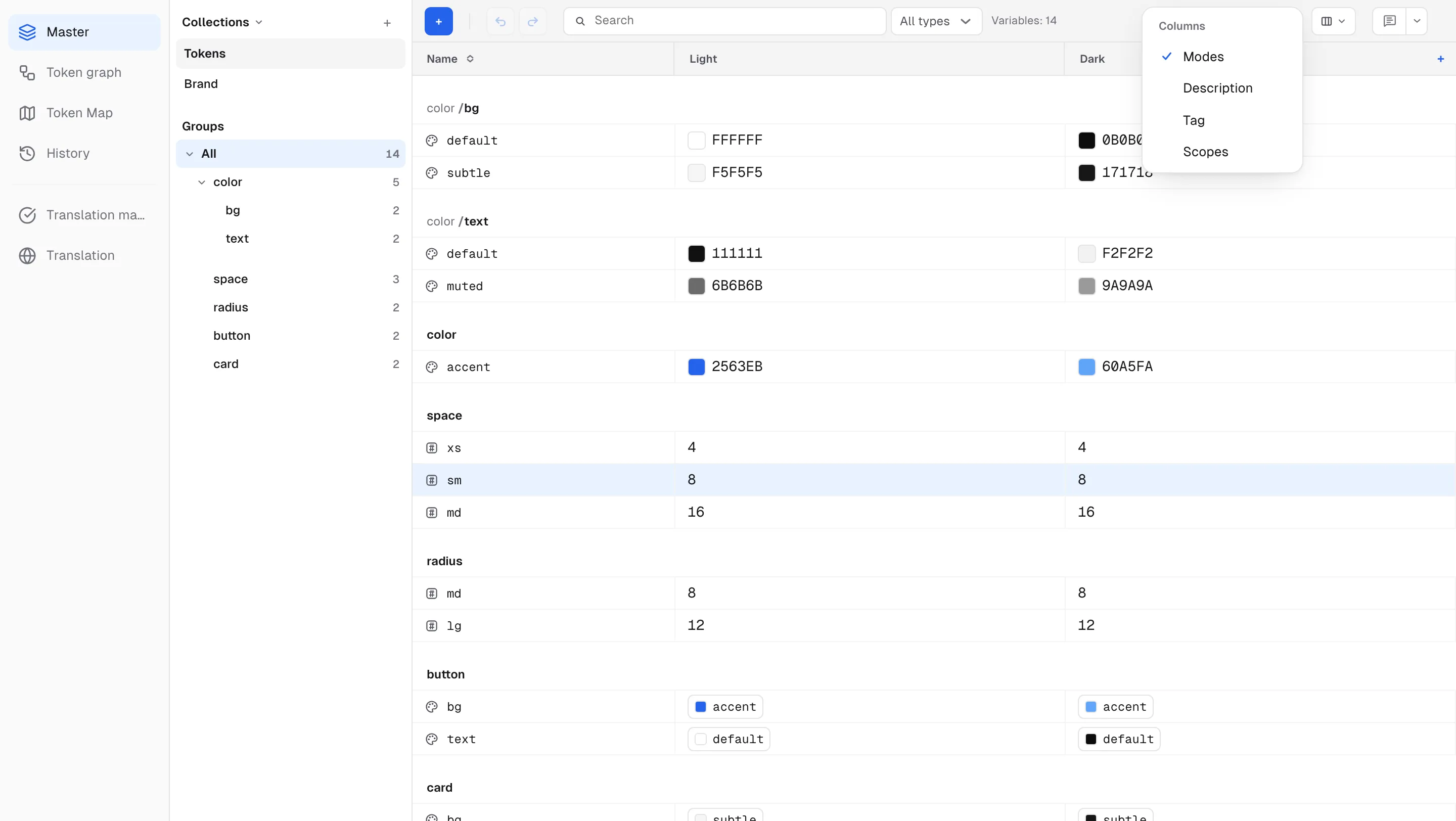
Press the columns icon in the toolbar (tooltip View — columns & color) and toggle the Modes · Description · Tag · Scopes columns in the Columns section. The menu stays open, so you can toggle several columns in a row.
With all three on, the master grid reads description, tag, and scopes on one row.
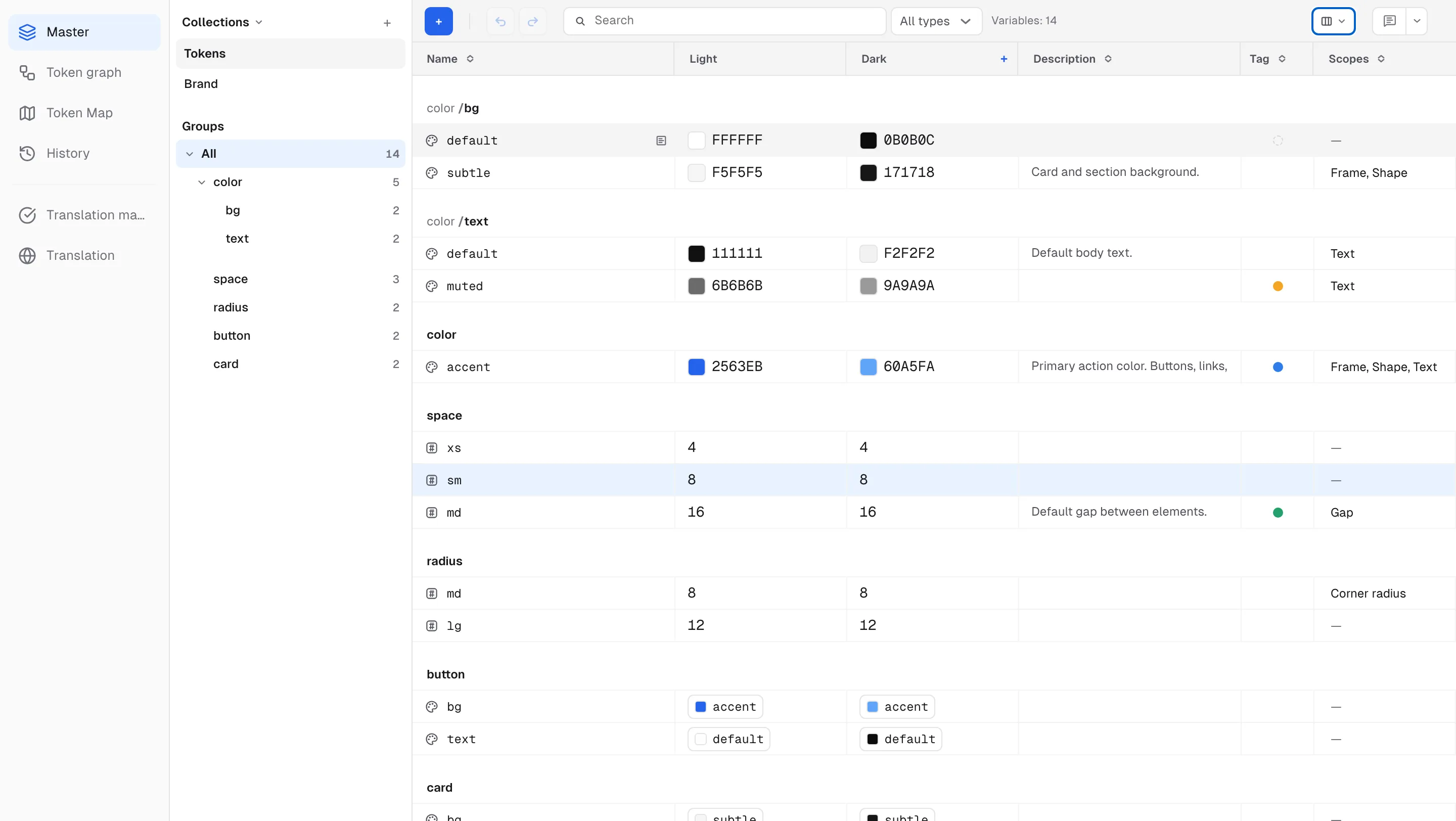
Comments can be pinned to Description, Tag, and Scopes cells just like value cells. If that column is hidden, the comment is kept, and navigating to it turns the hidden column back on.
Scopes — where a variable can be used
Scopes decide which property pickers offer the variable in Figma. Narrow a color variable to Text fill and it stops appearing when someone picks a frame background color.
- The Scopes cell summarizes the current state — All (all supported properties), None, the names of the chosen scopes (e.g. “Frame, Text” — when the column is too narrow the rest collapse into a +N badge), or ”—” for variables whose scopes haven’t been collected from Figma yet. Hover ”—” and it says Not collected from Figma yet — runs on the next sync.
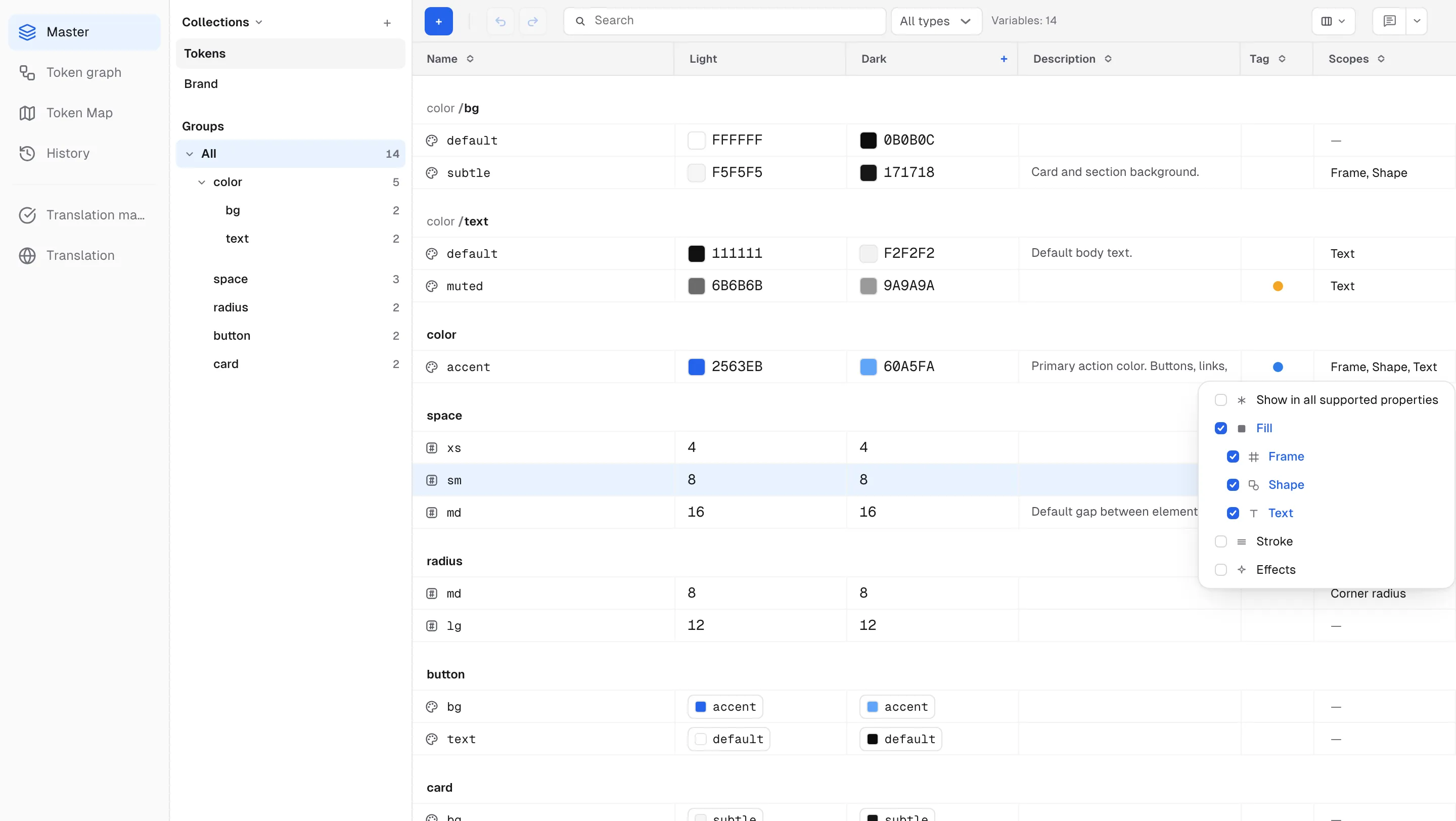
- Click the cell to open a list with the same hierarchy and icons as Figma’s scope dialog, and toggle several scopes in a row. The list only shows scopes valid for that variable’s type — color has Fill with Frame · Shape · Text beneath it plus Stroke · Effects; number runs from Corner radius through the Typography group; string has Text content · Font family · Font weight or style.
- Show in all supported properties is simply every scope checked at once — turn it on and every individual scope lights up; un-check any one of them and the top row clears while the rest stay on. For color variables, Fill works the same way for the frame, shape, and text fills.
- Boolean scope cells are read-only — Figma does not support scoping boolean variables.
Description
- Type directly in the Description column, or edit in the detail panel. Descriptions round-trip with the variable’s description in Figma.
- Clearing a description on the web never deletes the one in Figma — sync does not erase Figma-side descriptions.
Tags
- A Tag is an internal grouping picked from a 7-color palette (Red · Amber · Green · Blue · Purple · Magenta · Gray). Click a cell in the Tag column to toggle colors in the palette; a variable can carry several tags.
- The cell shows the tag colors as dots side by side; beyond four, the rest collapse into +N. No tag in the palette clears them all.
- Tags are web-only — never written to Figma, and never cleared by sync.
Editing many variables at once
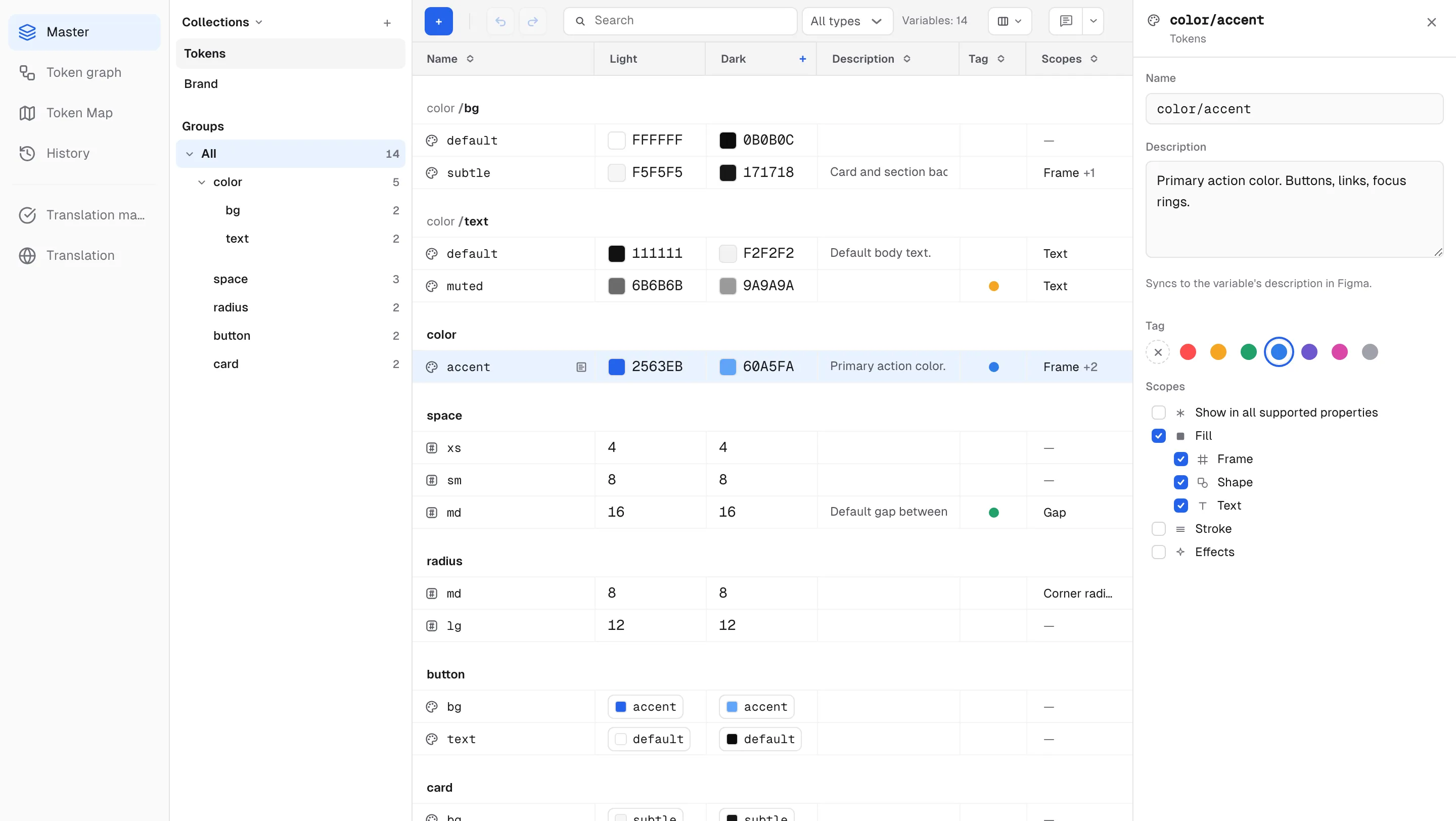
Open the detail panel from the detail icon that appears when you hover a row. With multiple rows selected, the panel switches to N selected and edits the whole selection.
- A description you type applies to every selected variable.
- Scopes and tags show Mixed when the selection disagrees; clicking a scope checkbox or a tag color dot unifies all of them.
- Scopes can’t be edited across mixed types — select variables of one type.
- One Ctrl(⌘)+Z undoes the whole batch.
Seeing state in color — the graph
In the token graph tab, metadata can be painted onto the structure so you can scan it at a glance.
- Under Color by in the graph toolbar, pick Not in Figma to highlight variables that don’t exist in Figma yet; each reference level shows a N not in Figma chip with the count. In the master grid this state is shown whenever the project is linked to a Figma file — hover the dot next to the name and it says Not in Figma yet — clears once the next Sync creates it.
- Pick Scopes and each reference level shows N scoped · N all · N hidden (no scopes — the variable appears in no picker) · N uncollected chips, so you can spot unfinished tokens right on the structure.
- Tag color dots also appear next to tokens in the graph.